Step 033 of 6
Add employees
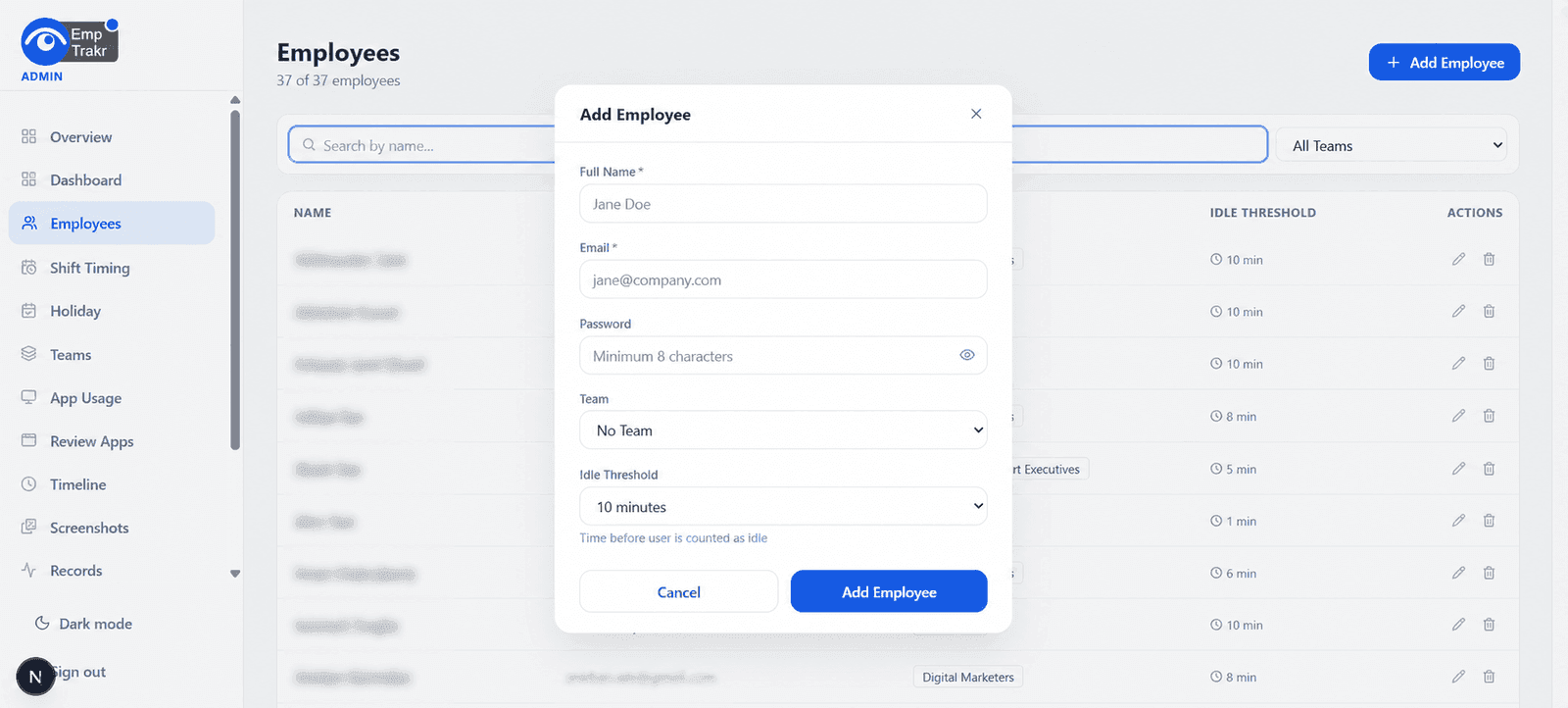
Add employees inside the admin panel, assign teams, and set their individual timezones and tracking rules.
Admin > Employees
A clear company setup path for admins: create your workspace, log in, add teams and employees, connect storage, then install the desktop app for employee time tracking and productivity monitoring.
Step 01
Sign up your company
Step 02
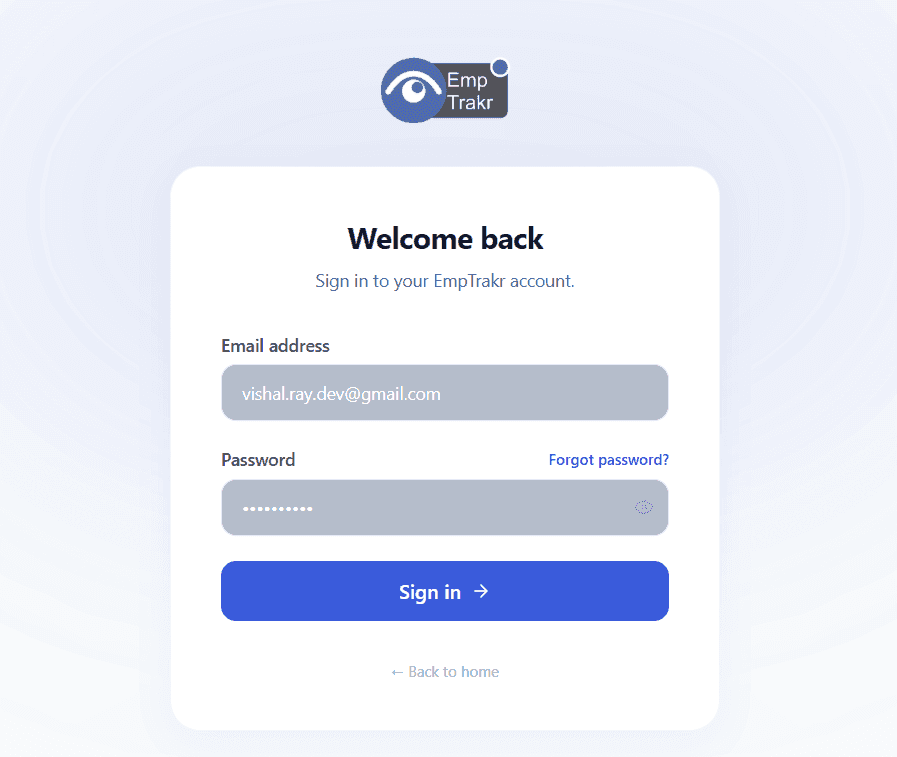
Log in with the admin email
Step 03
Add employees
Step 04
Connect Google Drive or OneDrive
Step 05
Configure work time rules
Step 06
Install the desktop app
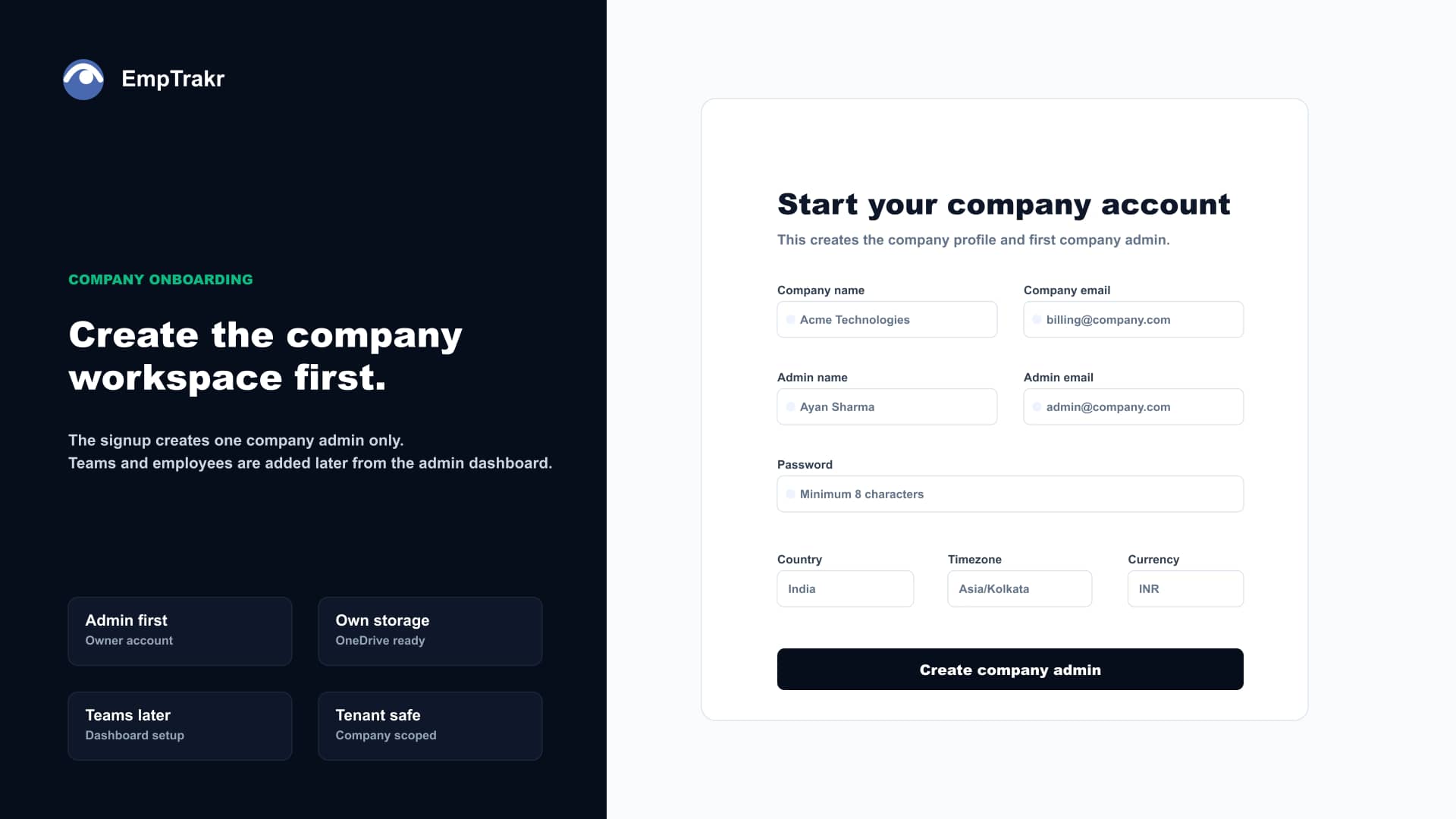
Create the company workspace with company details, admin name, admin email, timezone, currency, and password.
Use the admin email and password from signup to open the company admin dashboard.
Add employees inside the admin panel, assign teams, and set their individual timezones and tracking rules.
Connect company storage so screenshots from employee desktop apps are stored in your own Drive or OneDrive account.
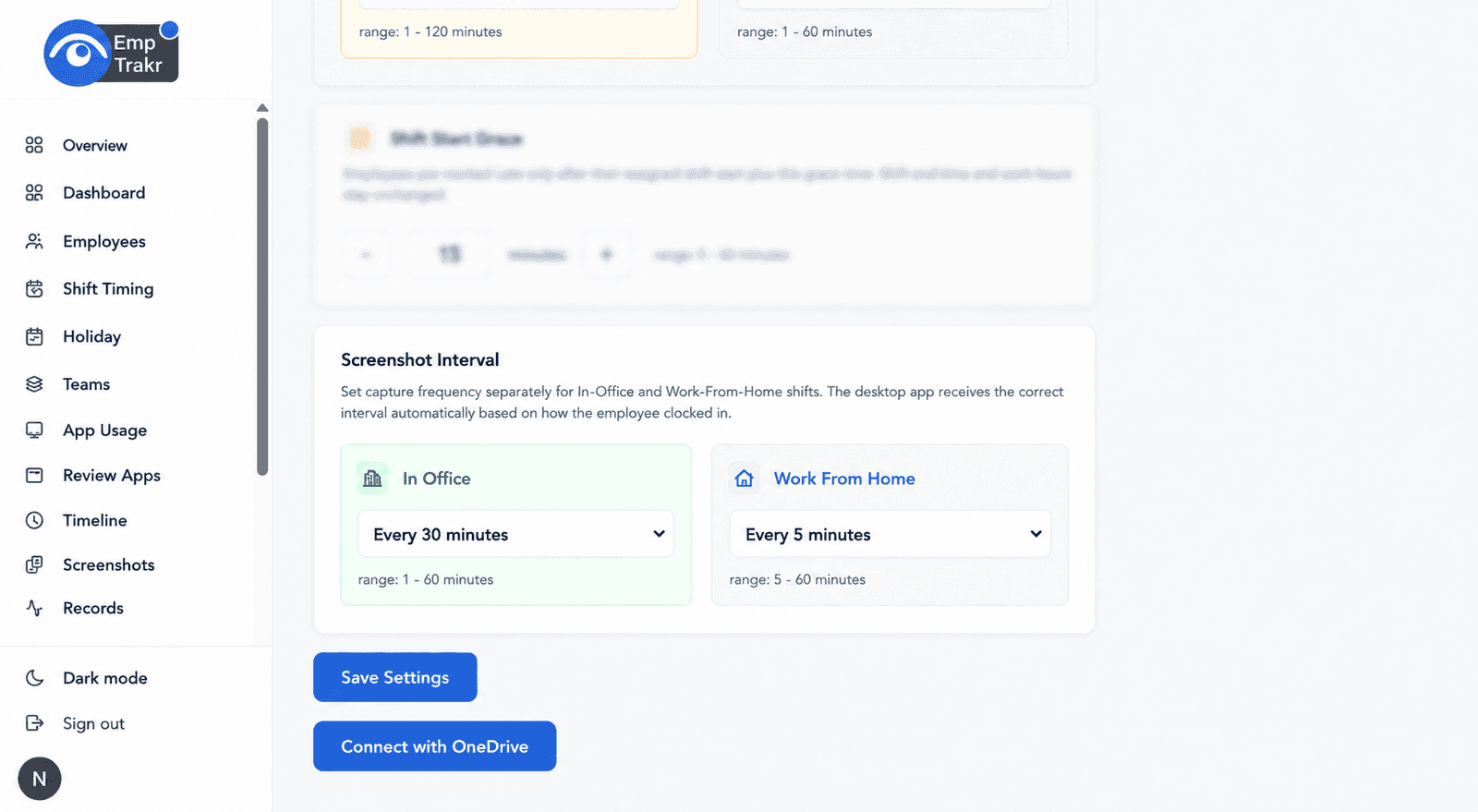
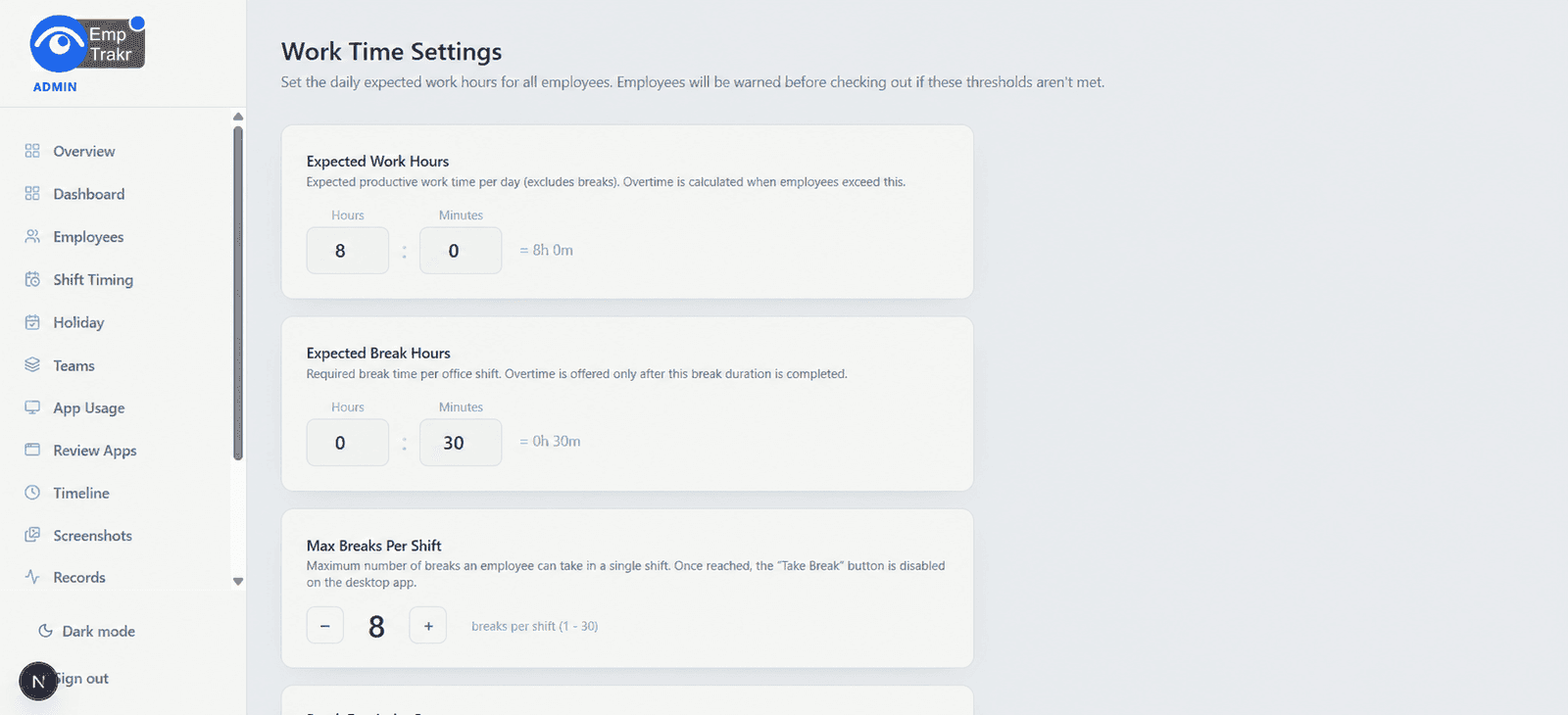
Configure expected work hours, break limits, clock-in rules, auto clock-out behavior, and idle thresholds.
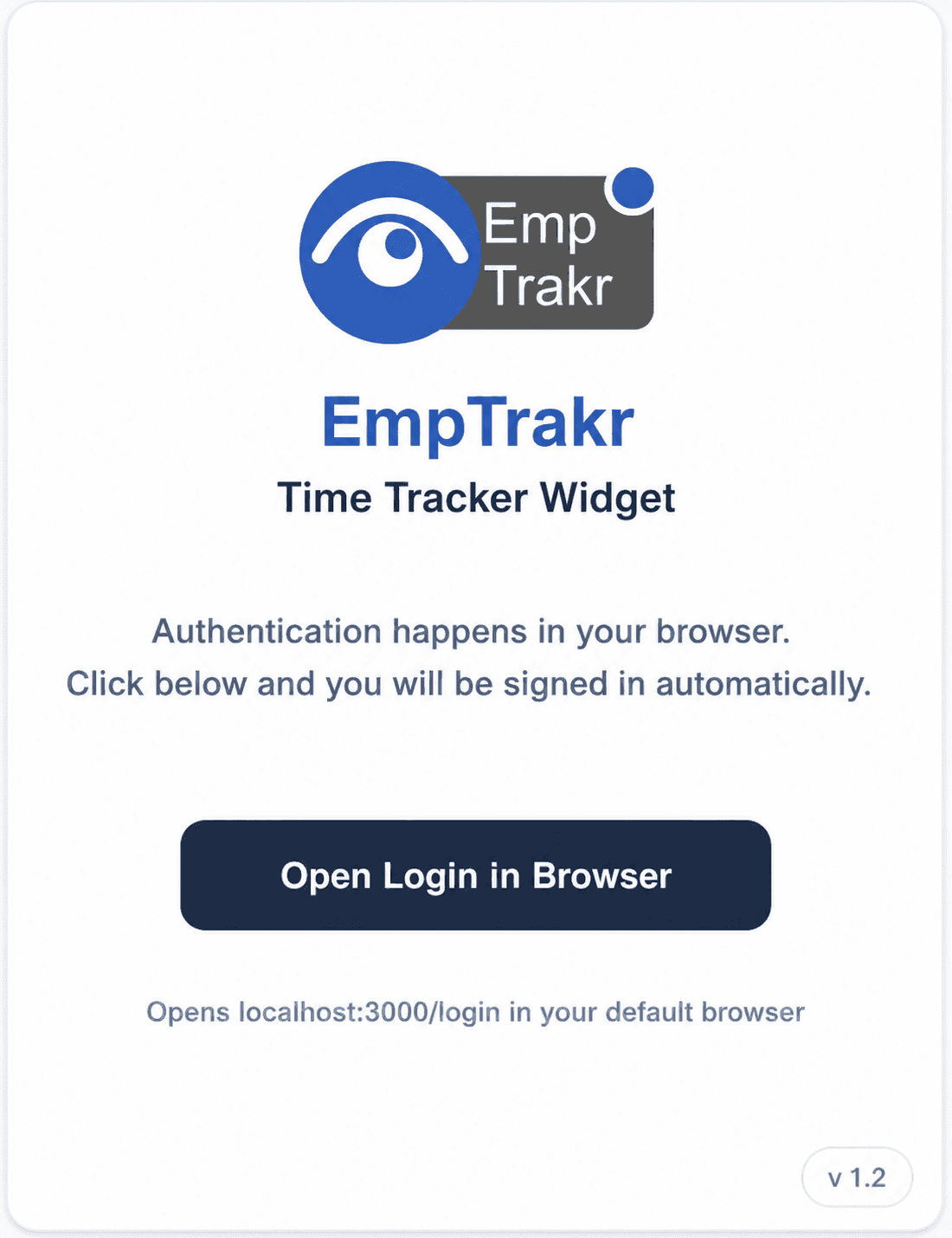
Install EmpTrakr on employee devices. Employees sign in with their employee account and start tracking work time.
EmpTrakr works best when company structure, storage, and desktop installation are configured in this order.
Phase 1
Phase 2
Phase 3
Create at least one team before adding employees.
Assign every employee to the correct team.
Set idle threshold and screenshot interval from admin settings.
Connect Google Drive or OneDrive before expecting screenshots in storage.
Ask employees to keep the desktop app running during work hours.
Confirm device timezone and system time are correct.